Quick Start
After installing Nerdics, sign in through console.nerdics.com, return to the desktop app, and open a project to enter the main workspace.
What this solves
This guide helps developers use the Nerdics quick start as part of an AI backend delivery workflow instead of treating generated code as an unverified output.
When to use it
Use it when a generated backend needs to be inspected, executed, repaired, documented, deployed, or monitored by the team responsible for the software.
Step-by-step workflow
Create a backend from a prompt, review the generated flow, run it in the sandbox, inspect API docs, and deploy only after the generated backend behaves as expected.
Expected result
A developer can move from prompt to running backend system while preserving visibility into source code, logic, logs, and deployment state.
Common issues
Most issues come from incomplete requirements, missing runtime configuration, unclear data models, or API behavior that has not been validated with logs and documentation.
Open Nerdics
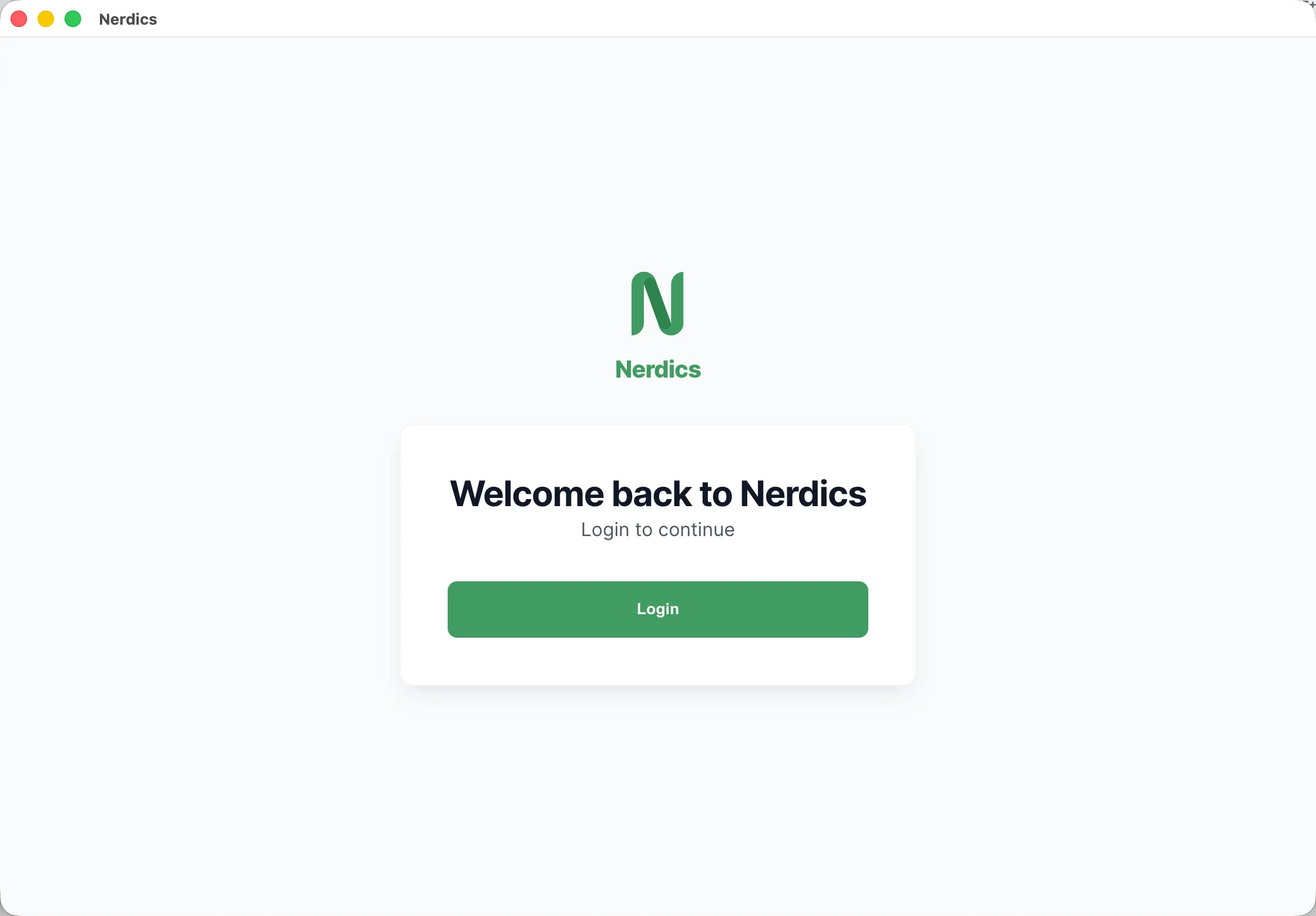
After installing Nerdics, launch the desktop app. You will see the start screen and can click Log in to continue.
Sign in with Google or GitHub
Clicking Log in opens console.nerdics.com. Nerdics currently supports third-party sign-in with Google and GitHub accounts. After sign-in succeeds, the browser automatically opens Nerdics again.
Create or open a project
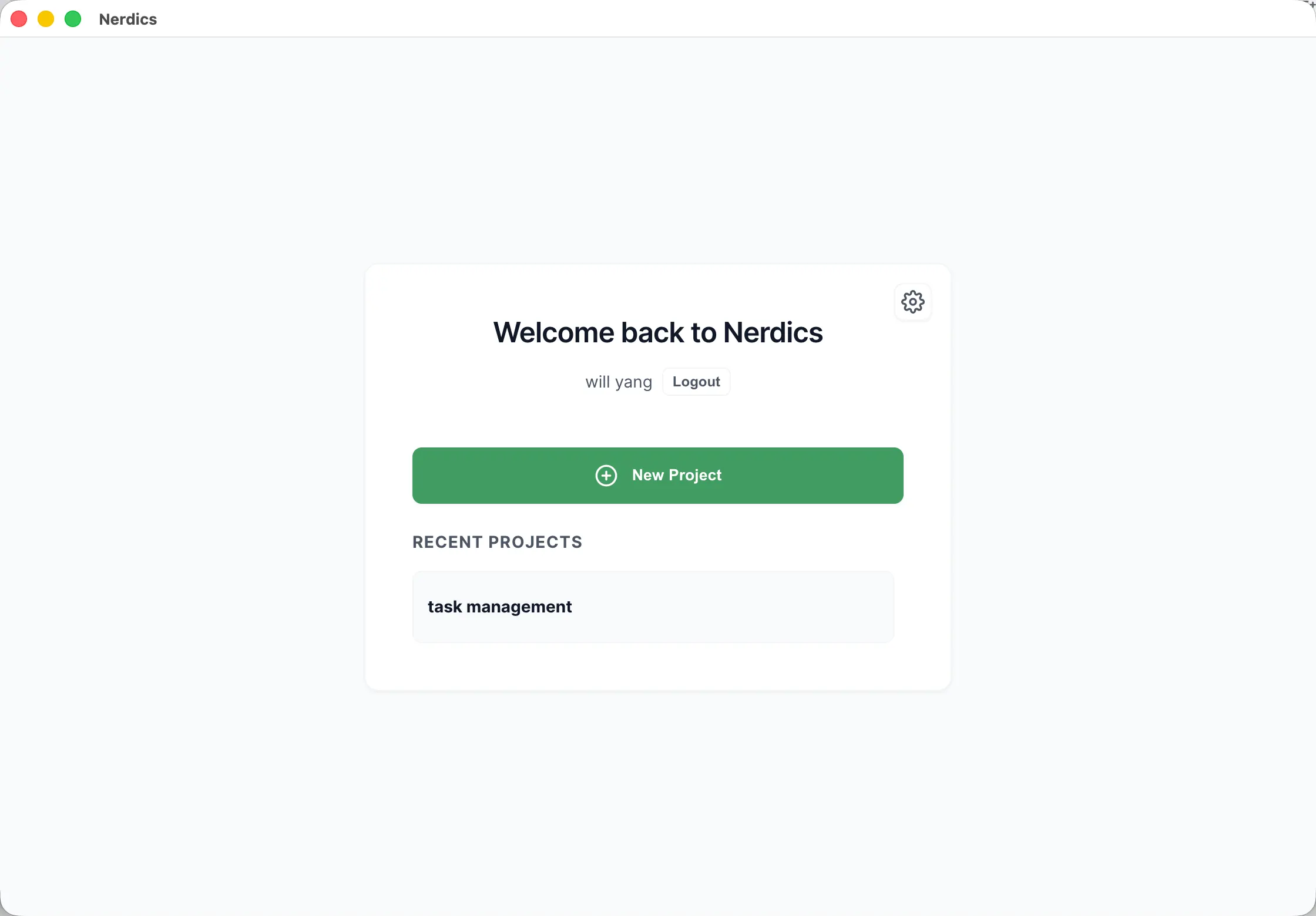
Create a new project or choose an existing project from the list. When you click a project, Nerdics checks the runtime environment and then enters the main workspace.
Main Workspace Areas
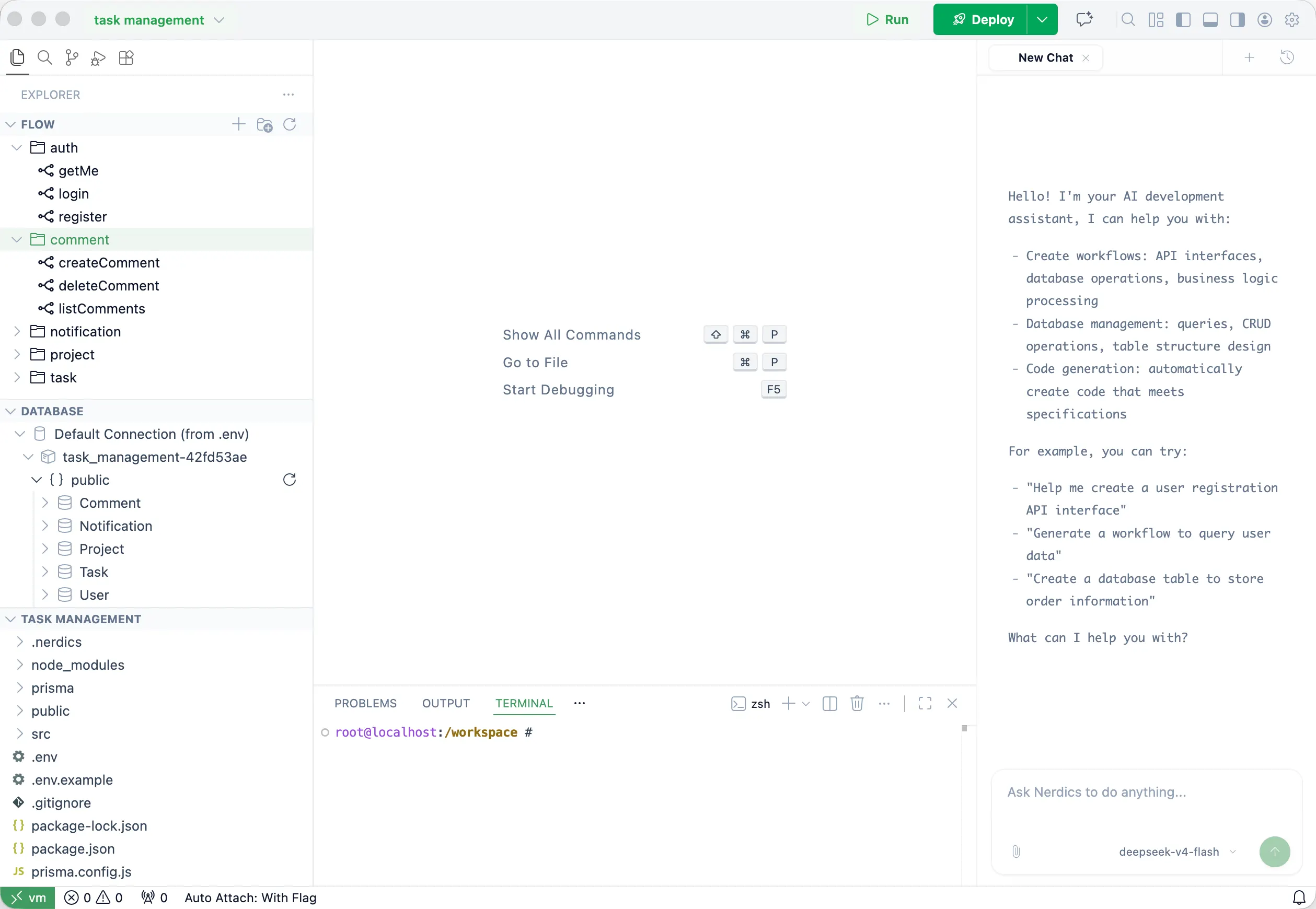
These areas make up the main Nerdics workspace after a project is opened.
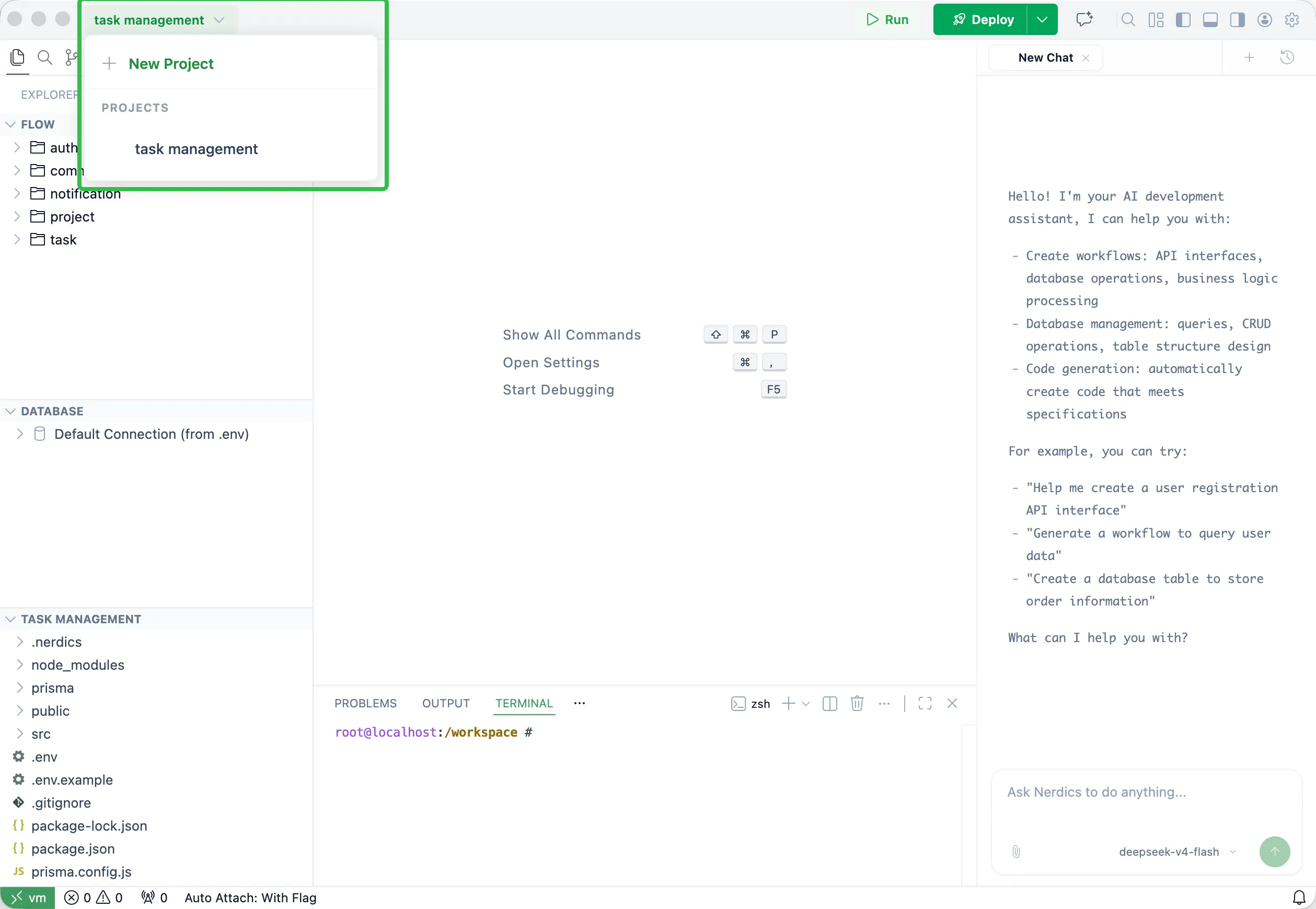
Project Area
Use the project area to switch between projects, create a new project, and adjust settings for each project.
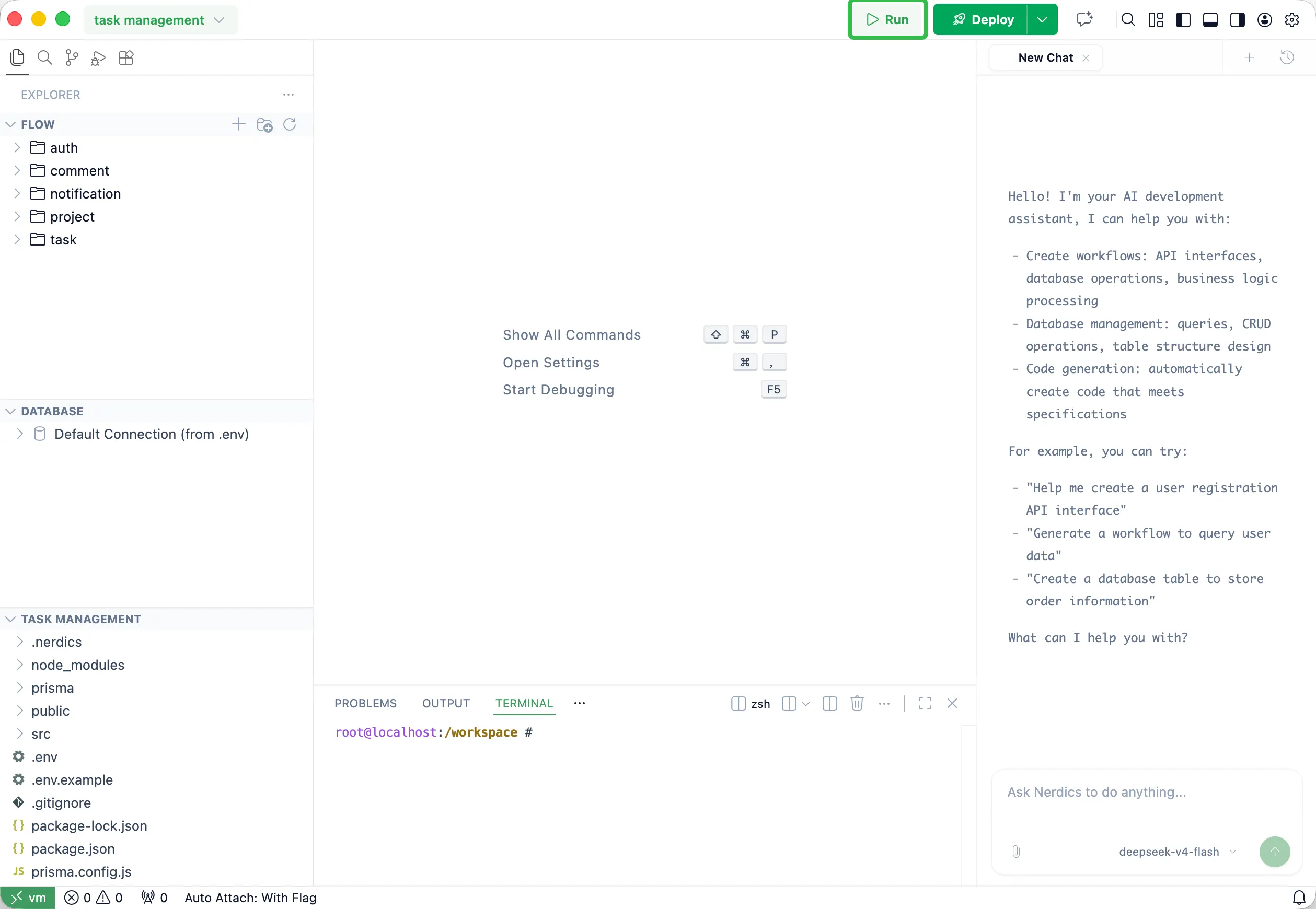
Debug Controls
Use the Debug model to run the project locally. Click Run to start the project in debug mode, then debug with breakpoints in the project source code.
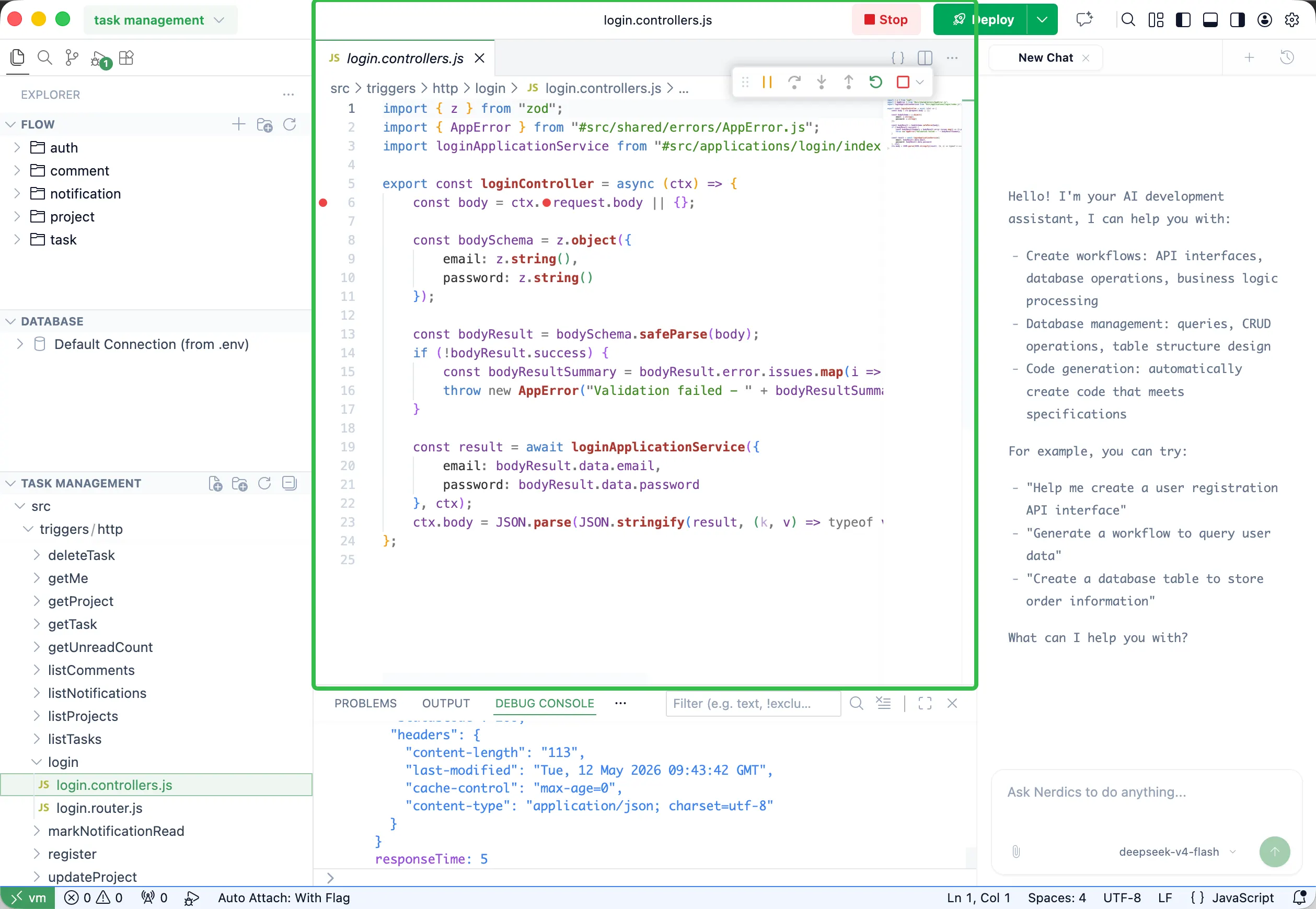
Debug Runtime Area
After a debug run starts, this area shows the running debug session and runtime feedback for the current project.
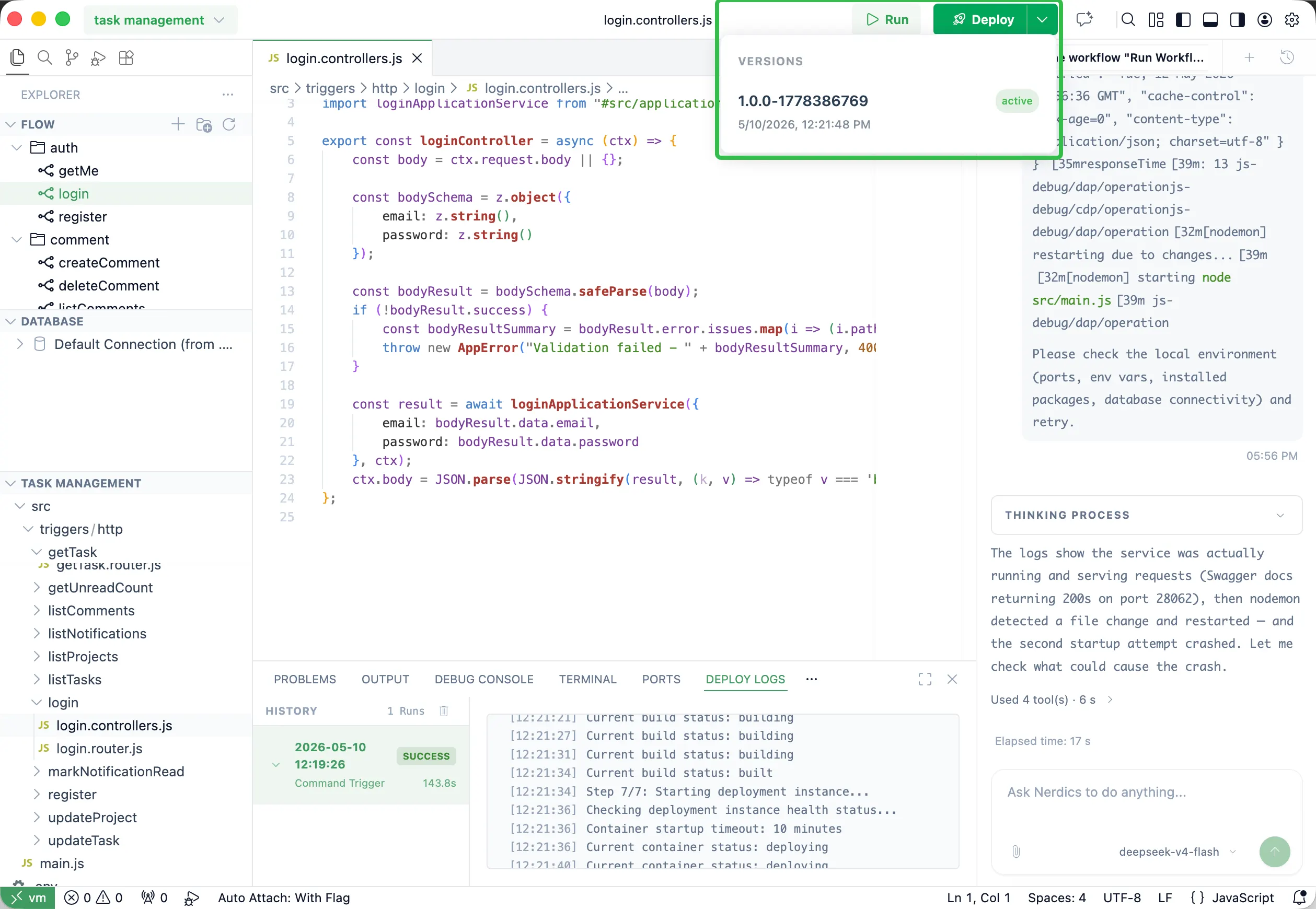
Deploy Area
Open the arrow beside Deploy to quickly redeploy a historical version. Clicking Deploy starts an automatic online deployment, and Nerdics opens the online API Docs when deployment finishes.
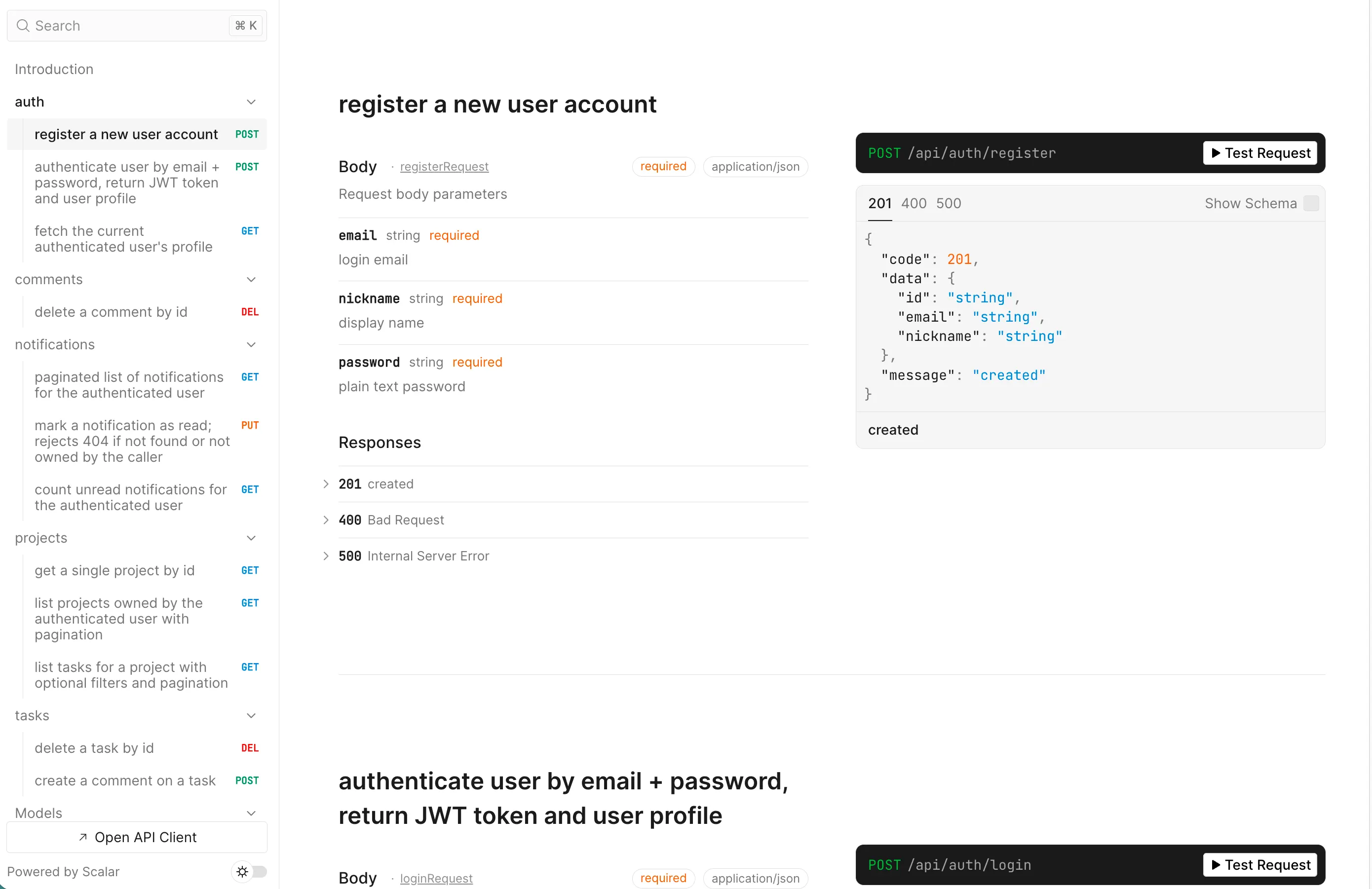
API Docs
API Docs contains every API built for the project. You can inspect and test all APIs online from this page.
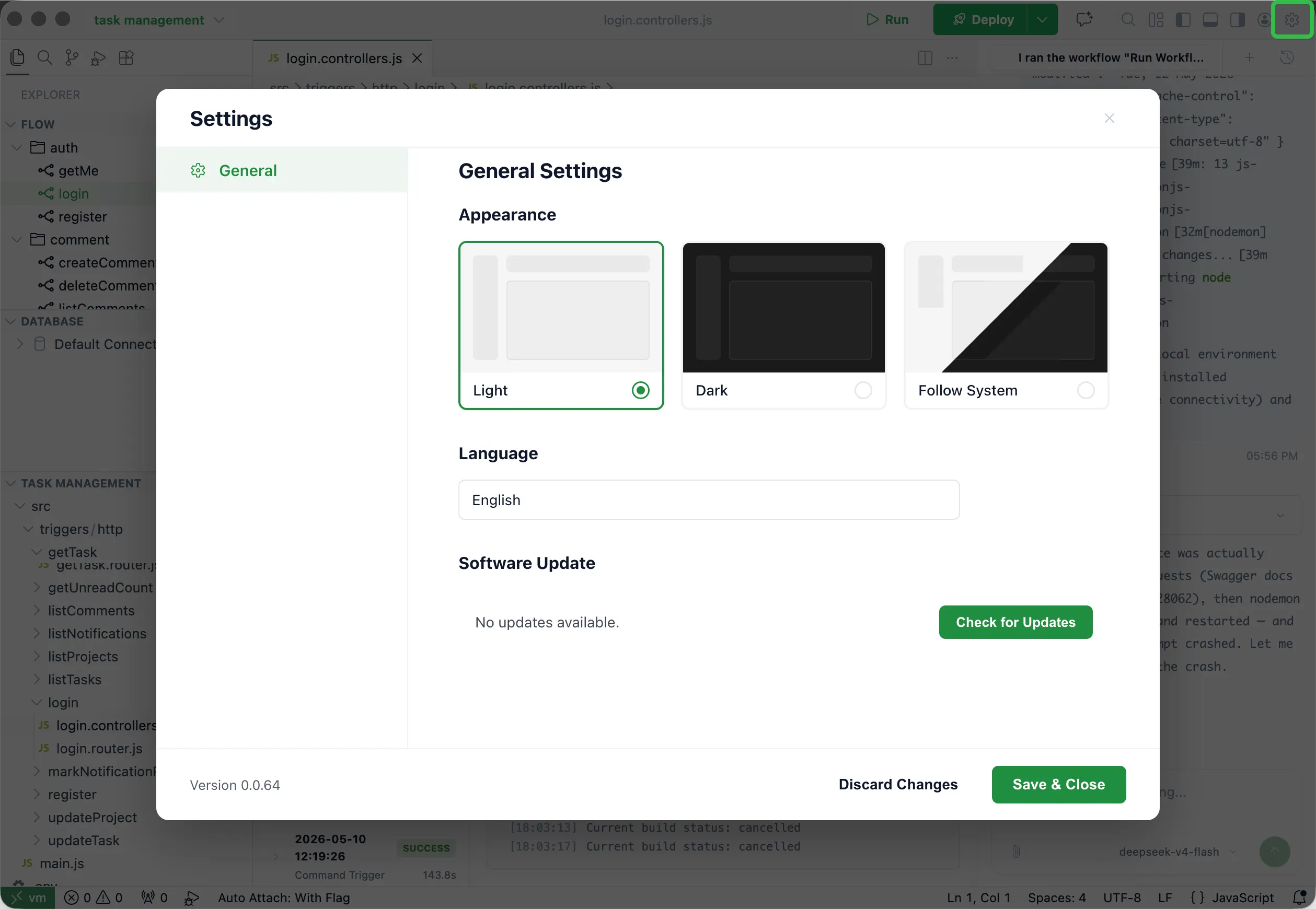
Settings
Use Settings for general preferences, including checking for updates, changing language, and switching theme.
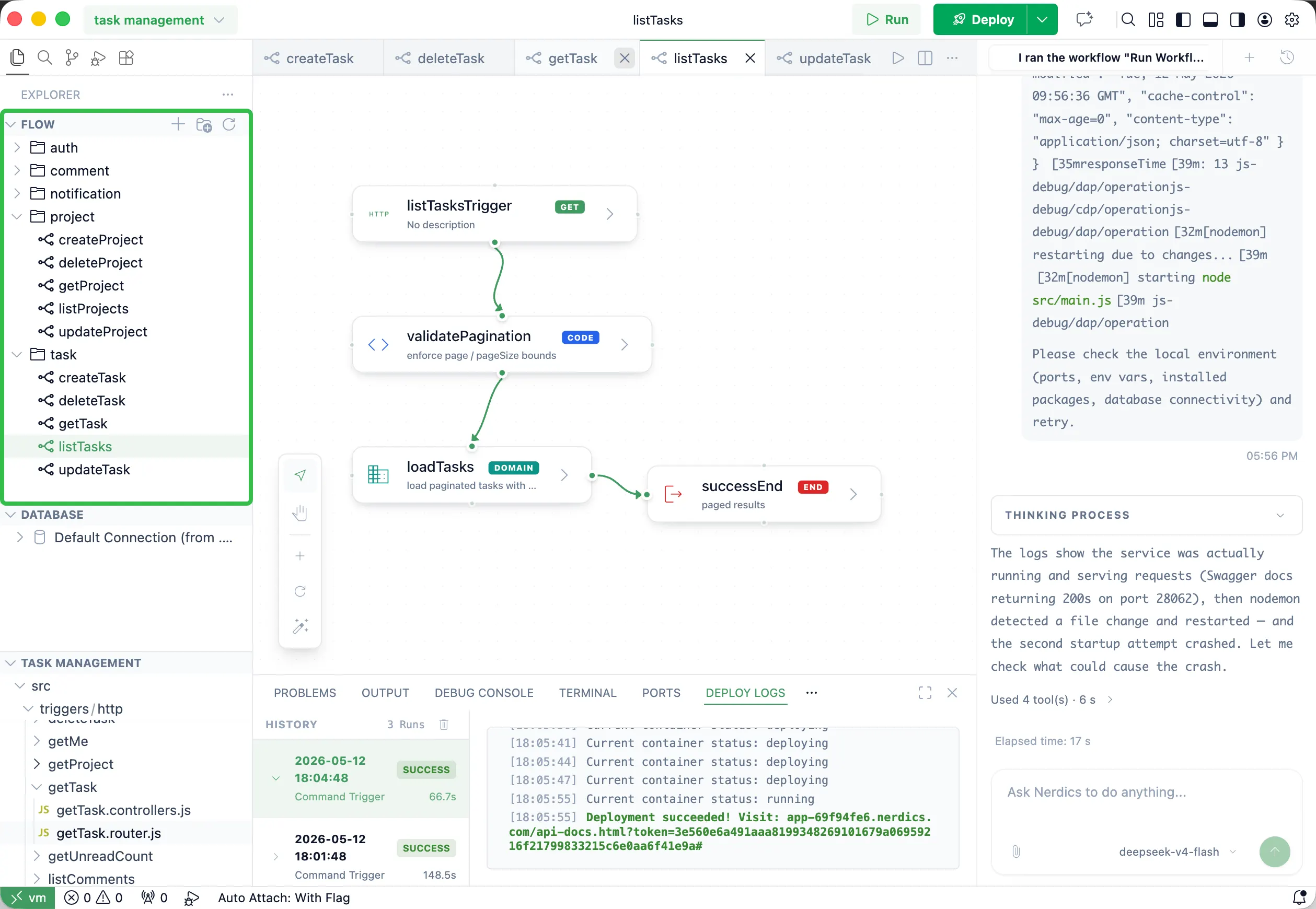
Flow Area
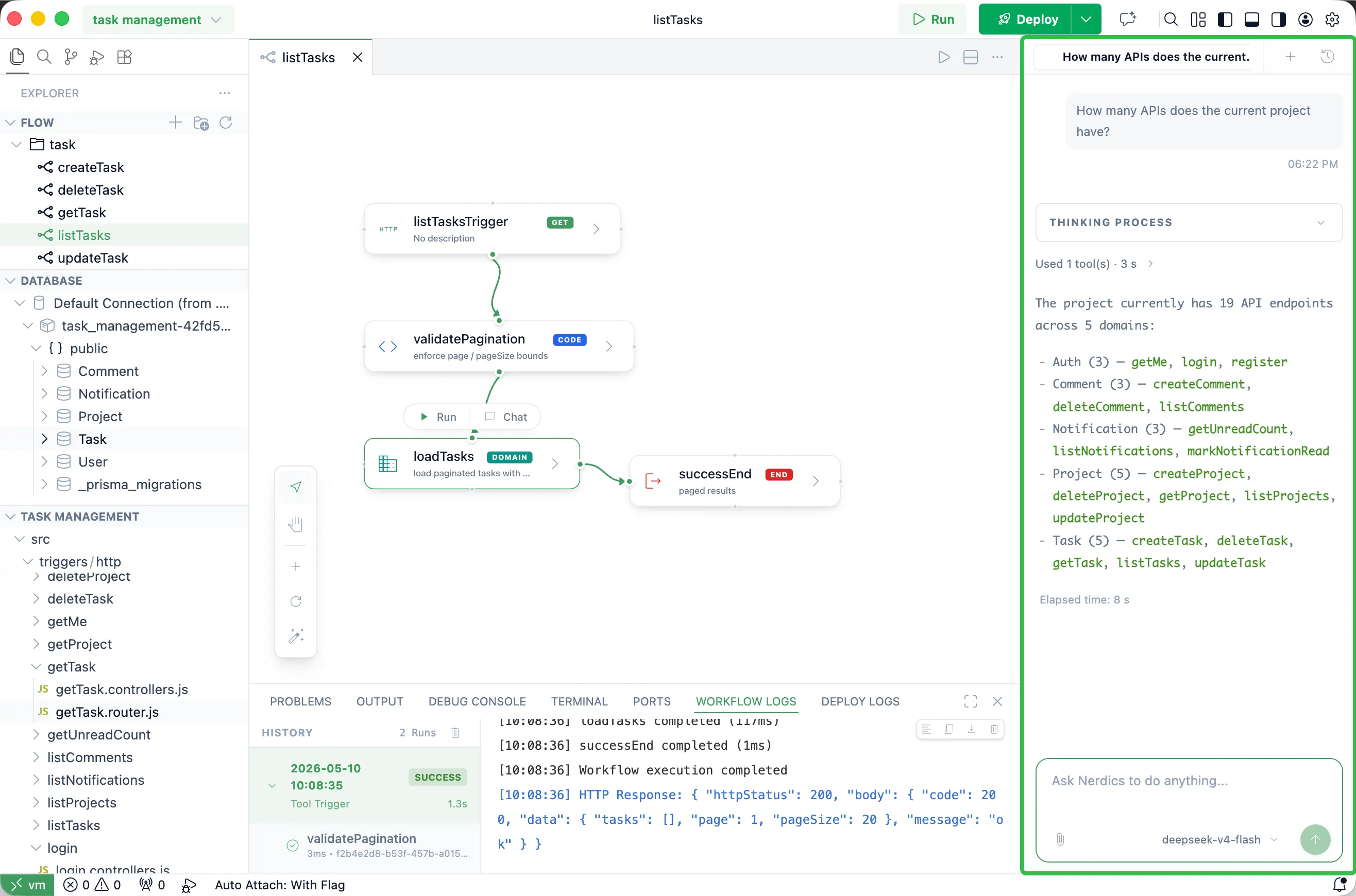
The Flow area lists all flows by functional category. Click a flow to visualize its details on the right.
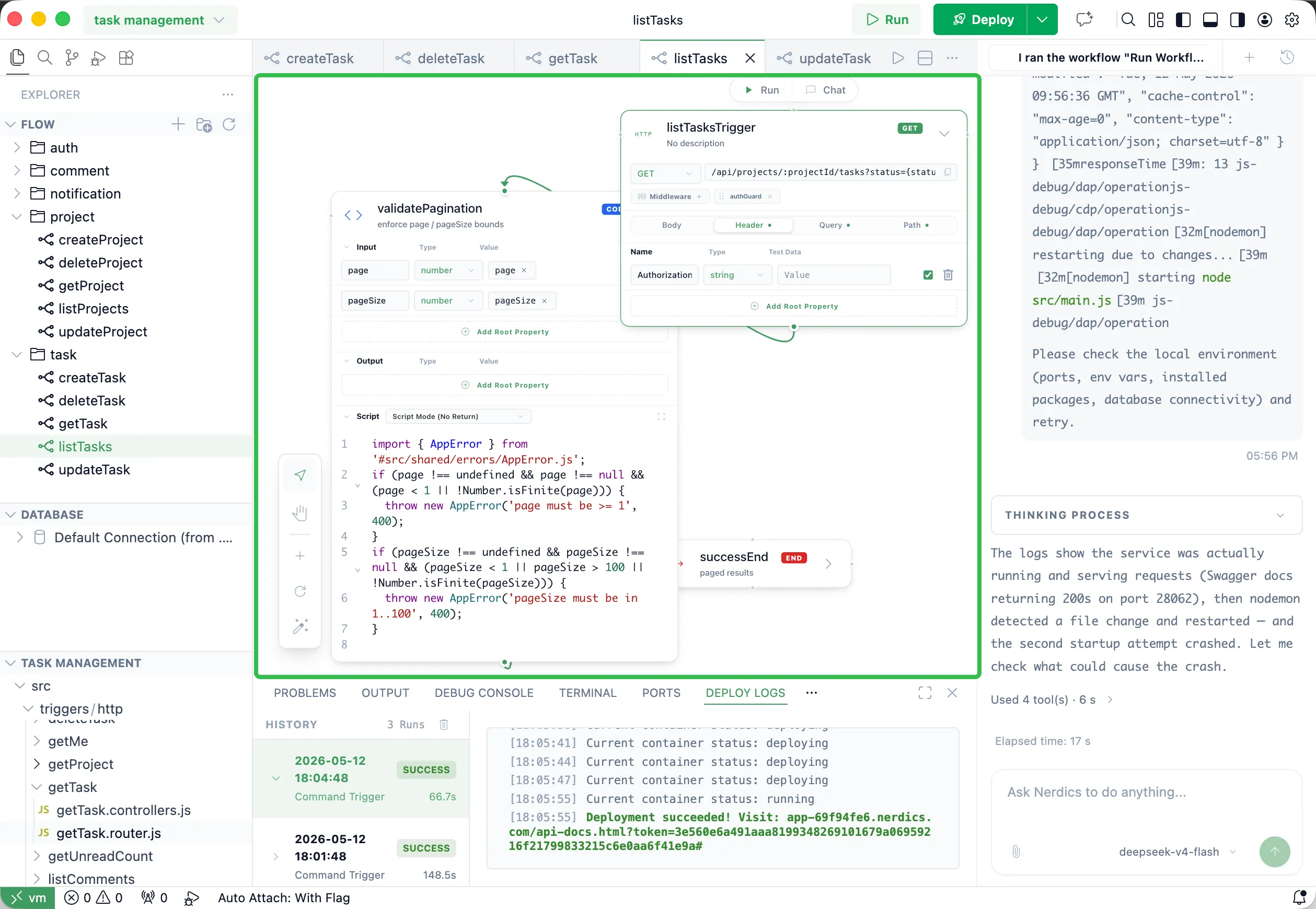
Expanded Flow View
Expand the visual flow to inspect node details. Most users do not need to edit nodes directly; ask the Nerdics development assistant in the chatbox to make adjustments.
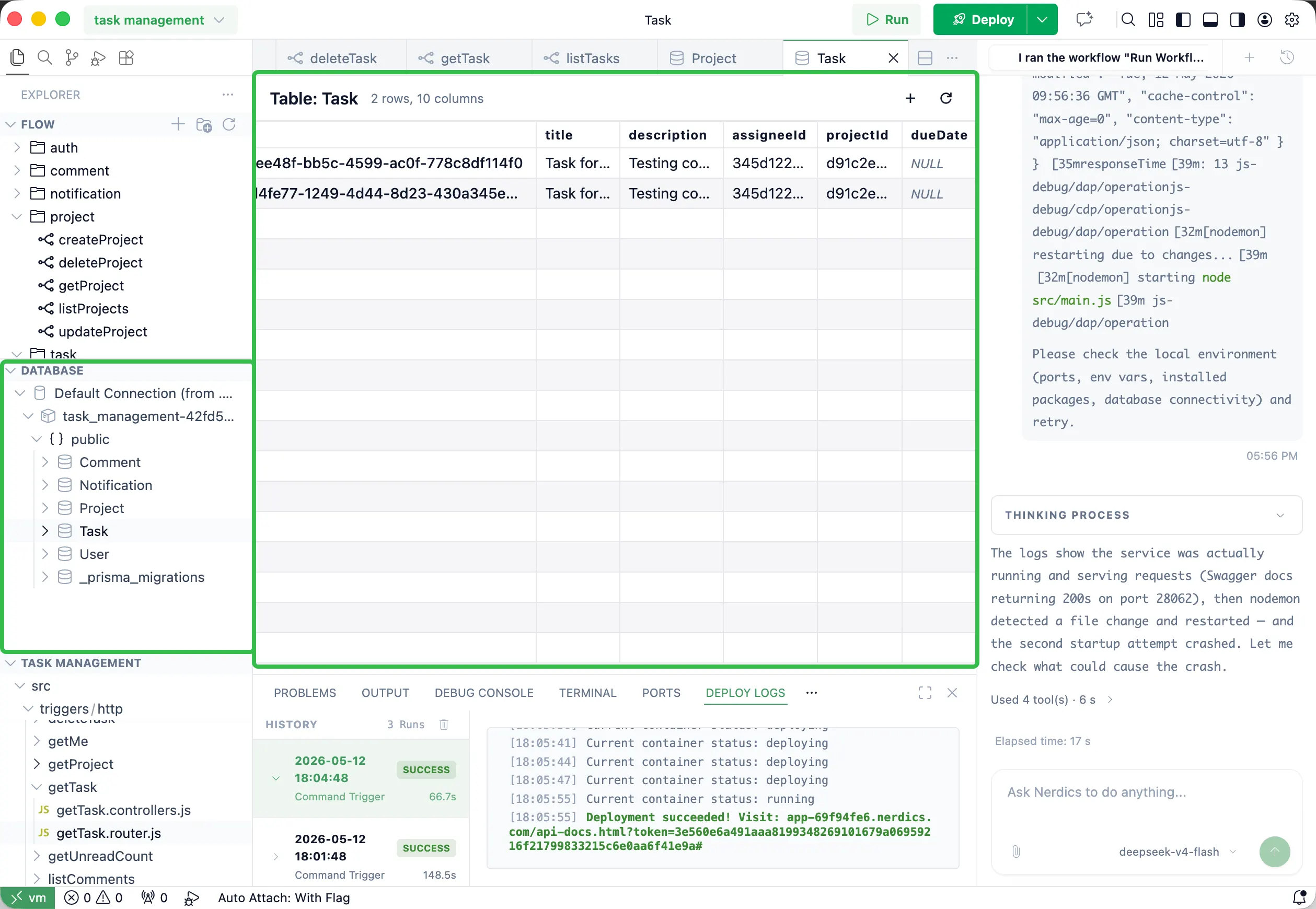
Database Area
The Database area shows the local database running inside the Nerdics container. For schema or data changes, ask the Nerdics development assistant in the chatbox.
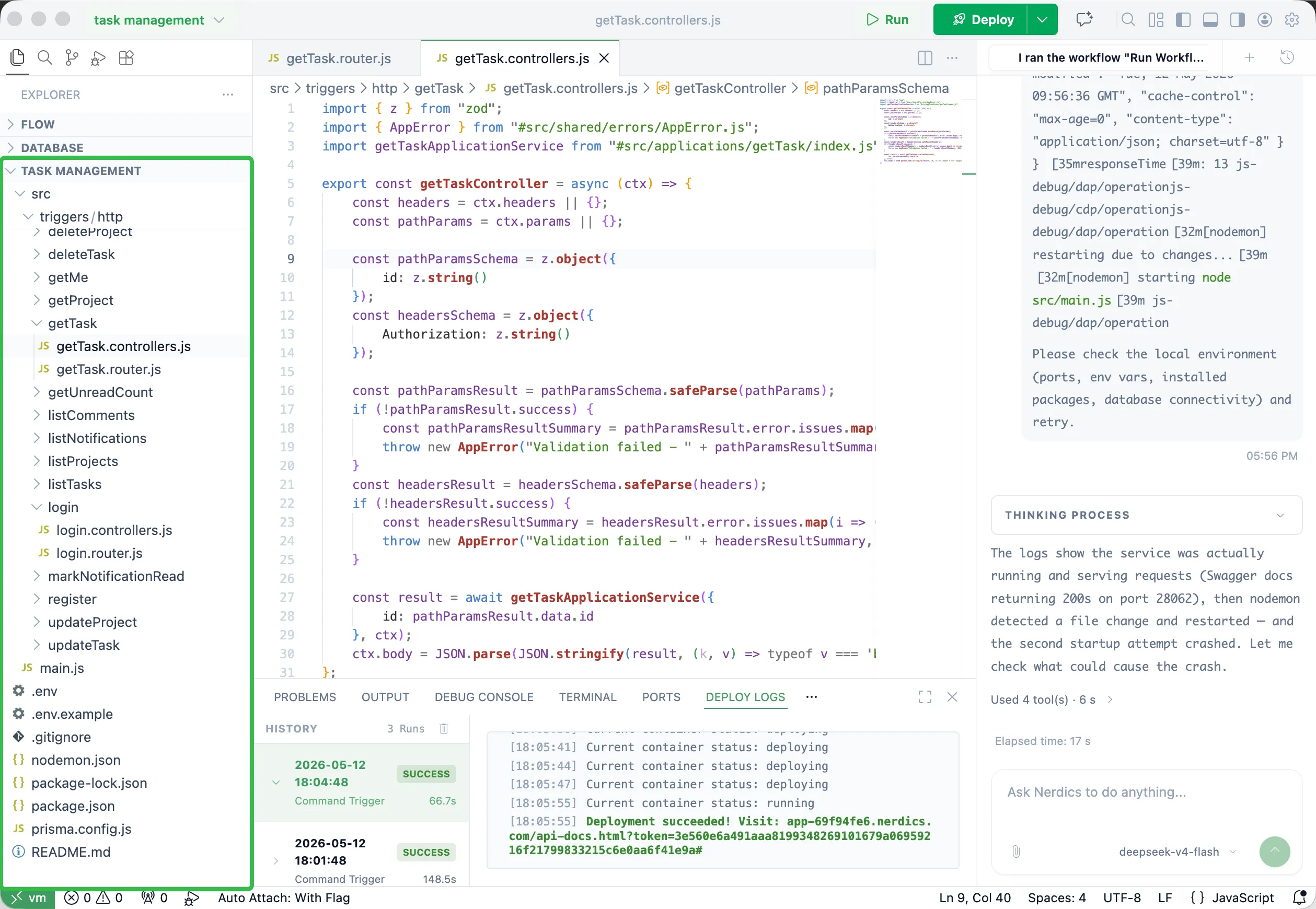
Source Code Area
The Source Code area maps source files between the virtual environment and the host machine. The code is clean and does not bind to Nerdics-specific content, so you can take it out at any time.
Chatbox Area
The Nerdics AI development assistant helps build complex projects, run flows automatically, fix errors automatically, and make targeted changes across the project.